
Adding Tags to the survey is available as part of the Beamo Plan(s)
Pro,
Enterprise.
Learn how to get more out of Beamo with Plans and Packs.
Learn how to get more out of Beamo with Plans and Packs.
Introduction
Add Tags to the survey to highlight or add more information.
Who can use this feature?
| Super Admin1 | Site Manager2 | Team Admin3 | Surveyor4 | Collab- orator5 |
Viewer6 | |
| Mobile App |  |
|
|
|
 |
|
Note: (if you are on the Enterprise Plan)
User 1, 2, Data added on the Global View by the Super Admin and Site Manager within the 3D Workspace is shared/visible to all teams unless a specific team is specified.
User 3, 4 Permissions are limited within the scope of their team.
Caution: You can not create a tag-only survey. If you upload the tag only, it can not be viewed in the Beamo Portal 3D Workspace.
Adding tags to the captured survey (before upload)
- Select the survey from the survey list.
- Tap the [Start Survey
] icon and select the [Edit Tags].
Create a Tag only (without survey, capable for only Portal surveys) 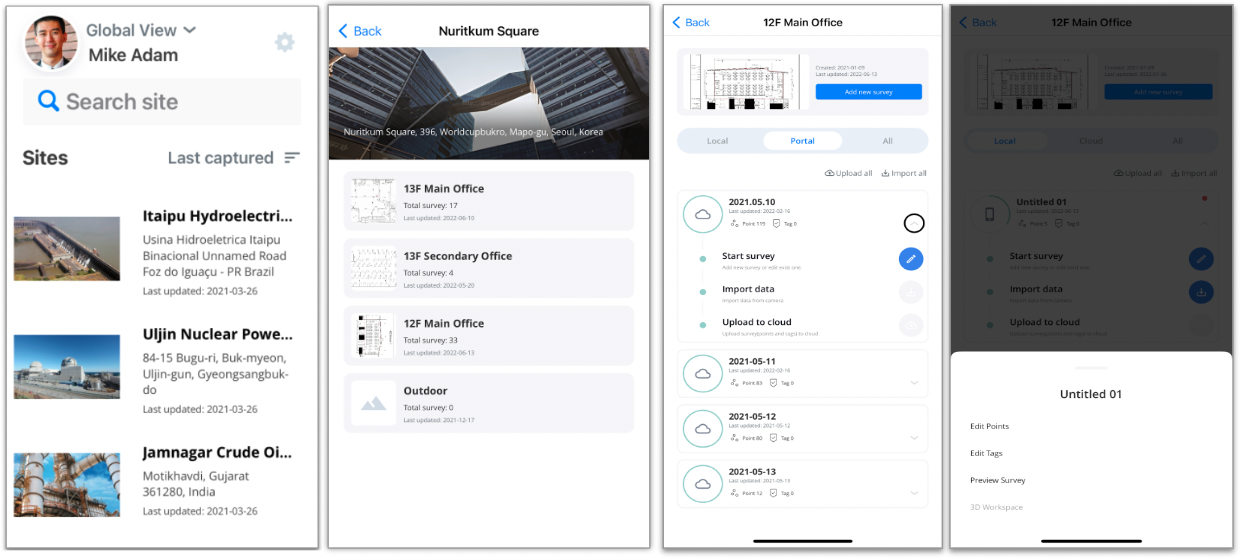
- Select the site from the home screen.
- Select the plan from the plan list.
- Select the survey from the survey list.
- Tap the [Start Survey
- Select a spot on the plan to locate a tag.
- Tapthe [checkmark] icon to confirm the location.
- Tap the [✖️ ] icon to cancel/ remove the tag.
- Enter the title (required) of a tag.
- Customize the type and color of the tag icons if needed.
- Upload media from three methods below:
- By recording a video on-site
- By capturing a photo on site
- By importing a photo or video from a gallery
- Select the folder, if needed.
- Fill in the description if needed.
- Attach the file if needed.
- Tap on the [Save] button to save the tag.
Note: Files added to the Tag may not exceed 100MB.